
Change Image Size#
Script Summary#
The images in the Flora Danica dataset are large, so a script that can resize the images may be useful for processing and analysis.
Steps:
Define a function to resize TIFF images while preserving their aspect ratio
Process images from a source folder and save resized versions to a destination folder
Display individual images in the Jupyter notebook
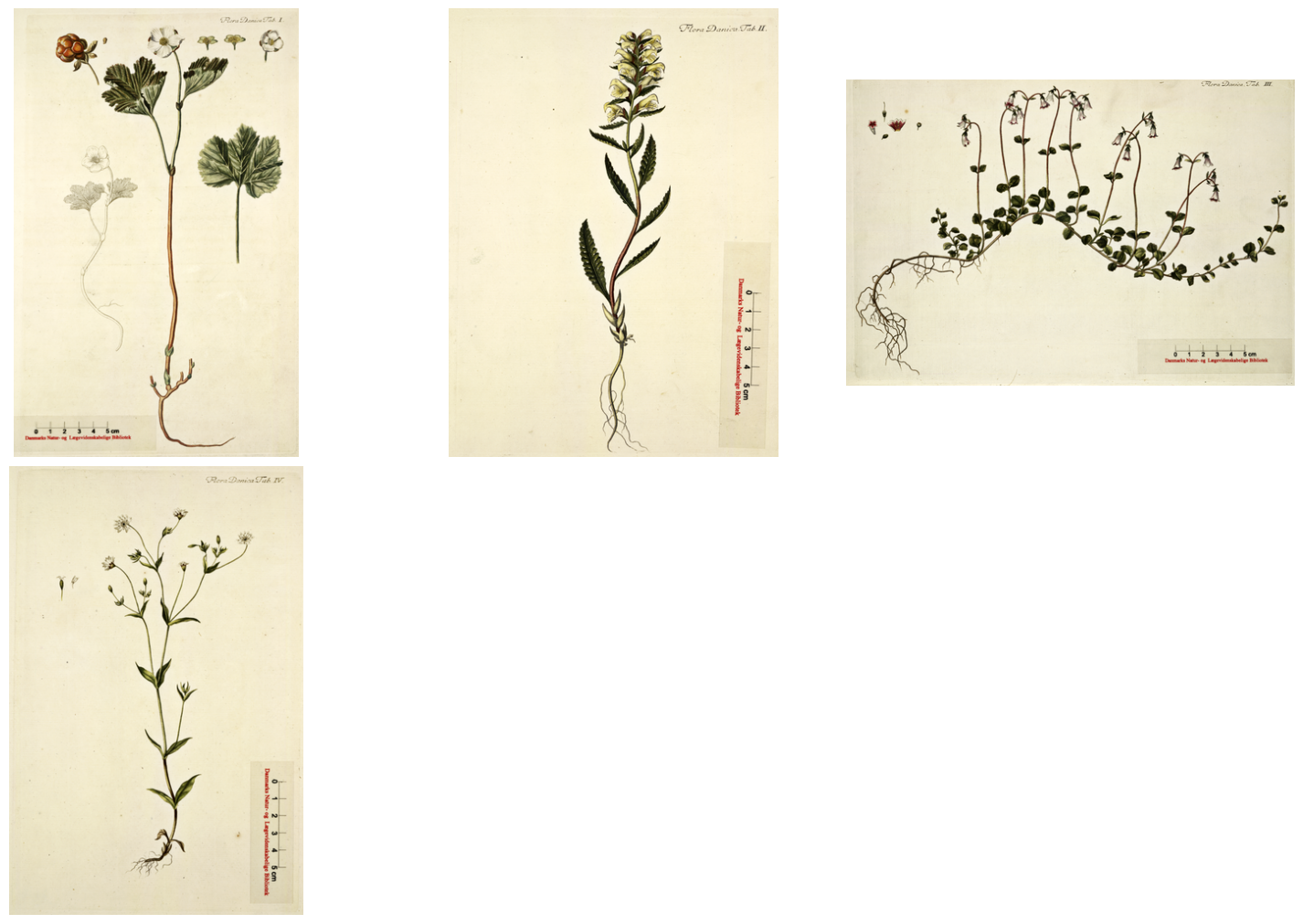
Display multiple images in a grid layout for comparison
Outputs: Resized TIFF images saved to a destination folder, and image displays within the notebook for visualization.
This notebook demonstrates how to resize TIFF files while preserving the aspect ratio. The script retrieves TIFF files from one folder and saves them as TIFF files in another folder (source_folder → destination_folder). It ensures that the destination folder exists and processes up to a specified number of files from the source folder.
Resize Images#
Define a function to resize TIFF images while preserving their aspect ratio. The function processes images from a source folder and saves the resized versions to a destination folder.
import os
from PIL import Image

def resize_and_store_tiff_files(source_folder, destination_folder, new_size=(100, 100), num_files=10):
    # Ensure that the folder exists
    os.makedirs(destination_folder, exist_ok=True)

    # Create a list of all tiff files
    tiff_files = [f for f in os.listdir(source_folder) if f.lower().endswith('.tif') or f.lower().endswith('.tiff')]

    # Process only specified number of files (num_files=10)
    for tiff_file in tiff_files[:num_files]:
        # Write the path
        source_path = os.path.join(source_folder, tiff_file)
        destination_path = os.path.join(destination_folder, tiff_file)

        # Open, resize and save the image
        with Image.open(source_path) as img:
            # Preserve aspect ratio
            img.thumbnail(new_size, Image.LANCZOS)
            img.save(destination_path, "TIFF")


source_folder = r'mekuni_flora_danica_data/sample_data/'
destination_folder = r'mekuni_flora_danica_data/floradanica_resized_images'
resize_and_store_tiff_files(source_folder, destination_folder, new_size=(150, 150))
Display images in a Jupyter notebook#
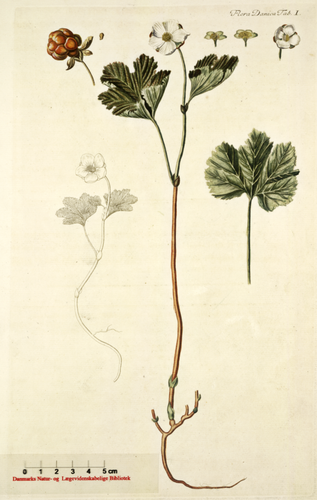
A single image#
# Load an image from a file - remember that this path matches this script
image_path = r'mekuni_flora_danica_data/floradanica_mini_sample_set/floradanica_0001.tif'
image = Image.open(image_path)

# Display the image in a Jupyter notebook
display(image)
Multiple images#
import os
from PIL import Image
import matplotlib.pyplot as plt

# Write the path to the folder with images and create a list of files
image_dir = r'mekuni_flora_danica_data/floradanica_mini_sample_set/'  # Replace with your image directory
image_files = [f for f in os.listdir(image_dir) if f.endswith(('.png', '.jpg', '.jpeg', '.tif'))]

# Show the first 4 images
image_files = image_files[:4]

# Create a list to keep track of the images
images = []

# Load the images
for image_file in image_files:
    image_path = os.path.join(image_dir, image_file)
    img = Image.open(image_path)
    images.append(img)

# Set up a grid layout
num_images = len(images)
cols = 3  # Number of columns
rows = (num_images + cols - 1) // cols  # Calculate how many rows are needed

# Build figure and layout
fig, axes = plt.subplots(rows, cols, figsize=(15, 5 * rows), constrained_layout=True)

# Display the images - use 'off' to hide frames around subplots
for ax, img in zip(axes.flatten(), images):
    ax.imshow(img)
    ax.axis('off')  # Hide axes ticks

# Use 'off' to hide unused subplots, i.e. if the number of images is less than rows times columns
for ax in axes.flatten()[num_images:]:
    ax.axis('off')

# Show the grid of images
plt.show()
Other studies#
Image processing workflows for the Flora Danica dataset can be extended in several ways:
Apply image enhancement techniques (contrast adjustment, noise reduction) to improve image quality for analysis.
Extract image metadata (dimensions, color profiles, compression) to create a comprehensive image catalog.
Implement image format conversion (TIFF to JPEG, PNG) for different use cases and storage optimization.
Create thumbnail galleries for quick browsing of the entire collection.
Apply image analysis techniques (edge detection, feature extraction) to identify and classify botanical elements.
Develop image comparison tools to identify similar plants or detect variations across different plates.
Integrate image processing with metadata analysis to create image-text correlation workflows.